Freehand Tool
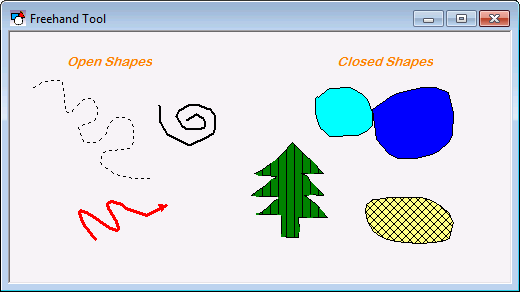
 The Freehand Tool draws free-form objects. The object code of a Freehand Tool object is “Polyline,” since the object is essentially a series of points connected by lines. A Freehand Tool object can be either open or closed. If the object is open (that is, its end points are not connected to each other) it can be applied typical line properties such as arrowheads. If the object is closed, it can be assigned a fill (background) color and fill hatch style.
|
Freehand Tool |
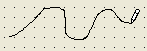
To create a Freehand Tool object, click and hold down the mouse button while you draw the shape.
|
Freehand Tool |
You can edit the points that compose the shape and add points using the Edit Points option on the Draw menu (Draw>Contour>Edit Points). To move an existing point, put the cursor over the point to be moved (the cursor shape changes to a target ( ) when it is over a segment endpoint) and click and drag the point to the new location. To add a new point, put the cursor over the line segment where you want to add the new point (the cursor shape changes to a crosshair (
 ) when it is over a line segment) and click and drag to add the new point.
The line color is specified by the ForeColor property. The line width is specified by the PenWidth property. The line style is specified by the PenStyle property. Only a solid line can have a PenWidth greater than 1 pixel. The Arrowhead and ArrowheadHeight properties specify if the line has arrowheads and the arrowhead height.
A Freehand Tool object does not show text. To show text in a Freehand Tool object you must use both a Freehand Tool object and a Text Tool object. However, a Freehand Tool object can show the status of a point. To associate the object with a point use the point identifier properties to form a fully qualified CygNet tag string. The point identifier properties are [1:SiteService], [2:Point ID], [3:Long Point ID], [4:Facility ID], and [5:UDC]. If the object is on a templated screen, only use the [5:UDC] property.
The [AlarmElement] property can be set to show the point state color in the object’s Background Color, the Foreground Color, or not at all (None). When set to None, the color specified for each component is shown. If set to one of the other options, the component color is replaced with the point state color. The Background Color option is applicable only if the end points are connected.
The [UseCustomStateColors] property enables the object to use its own custom point state colors. If set to 1 - Yes, the colors used are those defined by the object’s [CustomStateColors] property. If set to 0 - No, the colors are those defined by the TheView’s [CustomStateColors] property.
More:


